First Failover
This page walks through the first instance-level failover in the web console. Before starting, complete Create the First Disaster Instance and wait for the instance to become Protected.
For detailed parameter mapping, API fields, and a real timeout compensation case, continue with Run Instance Failover.
Pre-checks
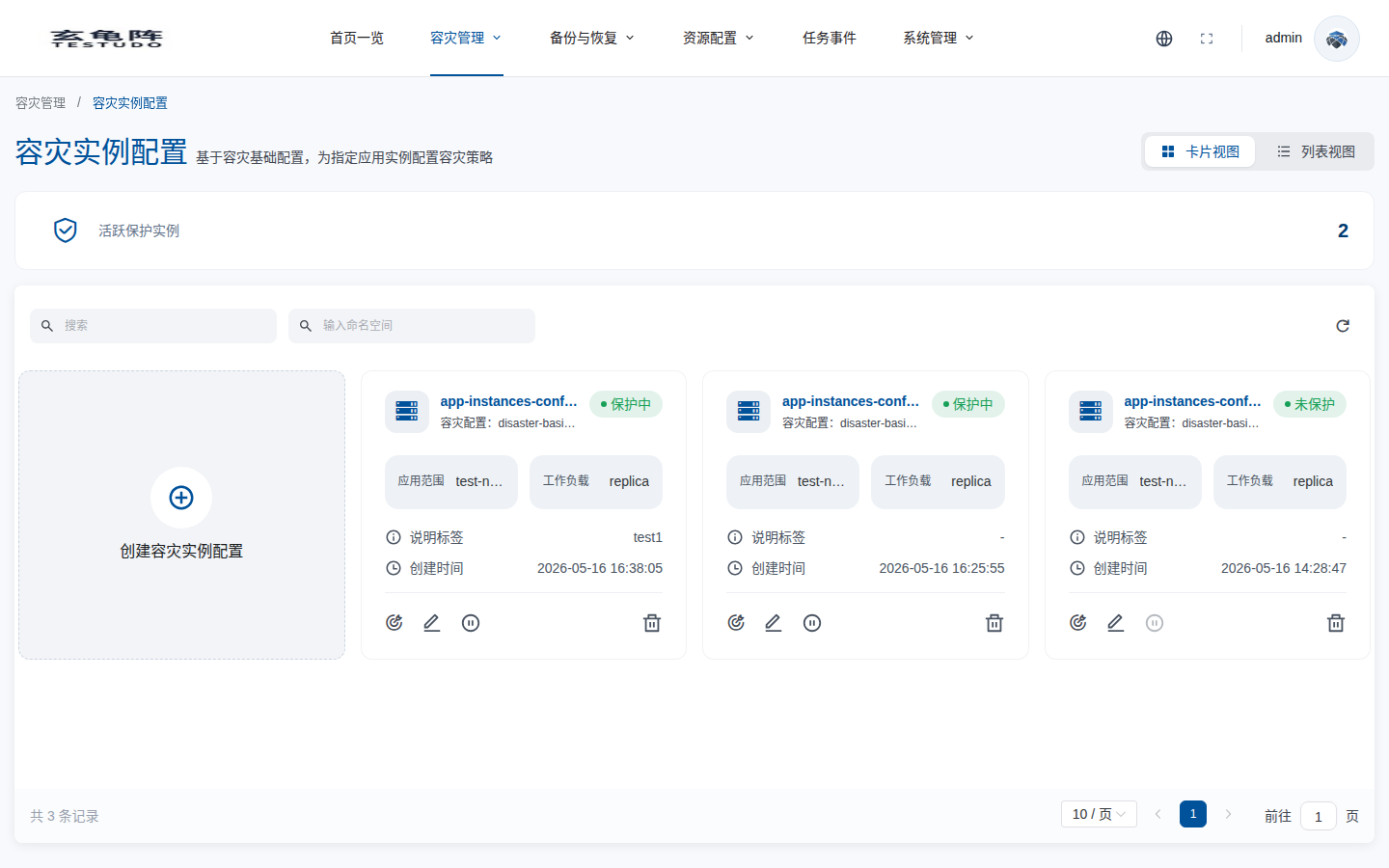
Open Disaster Recovery / Instance Configuration and confirm that the target instance is protected.
Click the instance name to open the detail page, then check the Resource Sync Policy tab. The latest DataSync and ResourceSync should be successful.
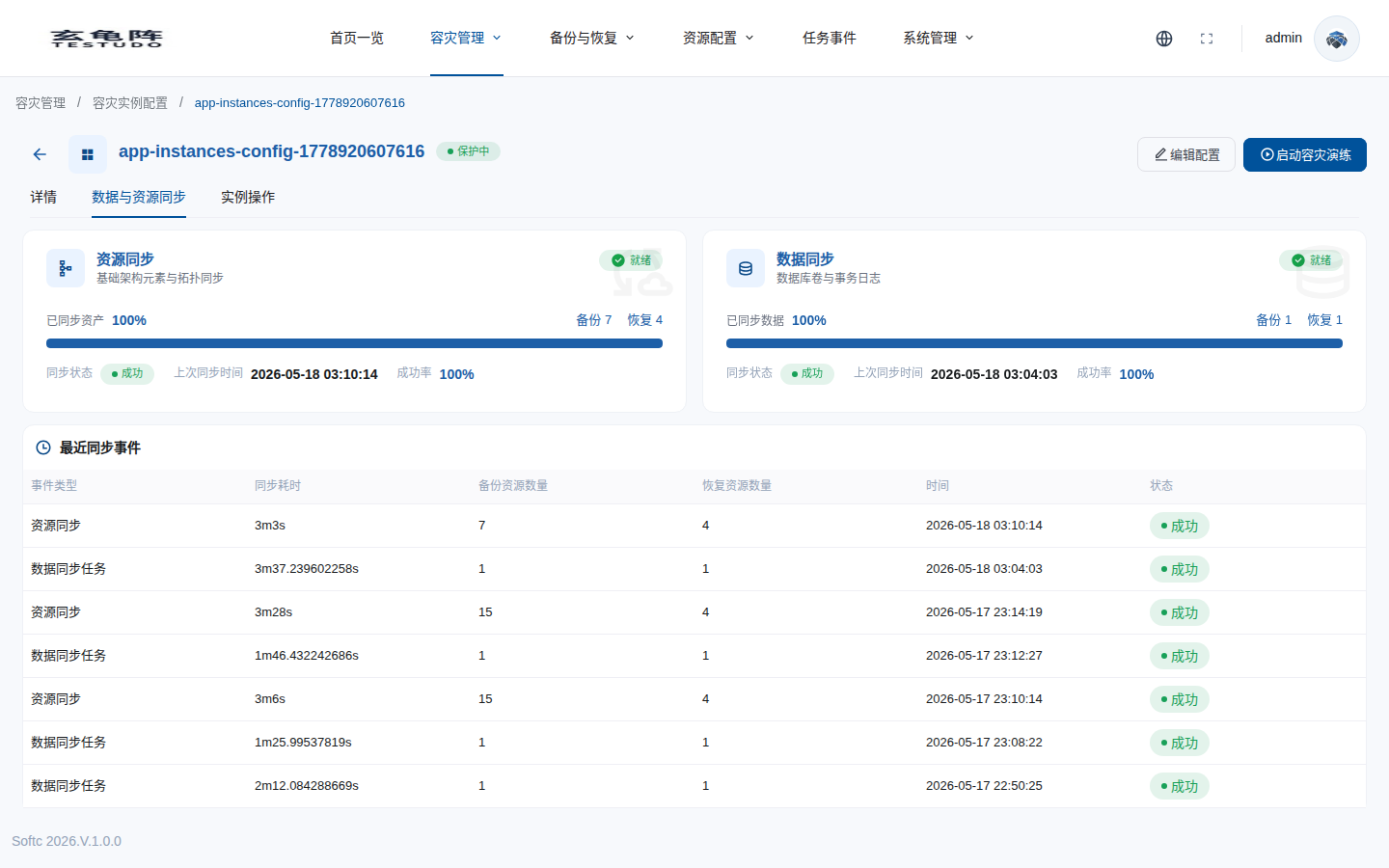
Before failover, also confirm:
- The target cluster has the required images, Secrets, StorageClasses, IngressClasses, and CRDs.
- Standby resources exist in the target cluster.
- The team has approved the traffic switching window.
- If the run includes final sync, the operation timeout is long enough for the real data volume.
Open Instance Operation
On the instance detail page, open the Instance Operation tab. The topology shows the current primary cluster, standby cluster, and backup repository.
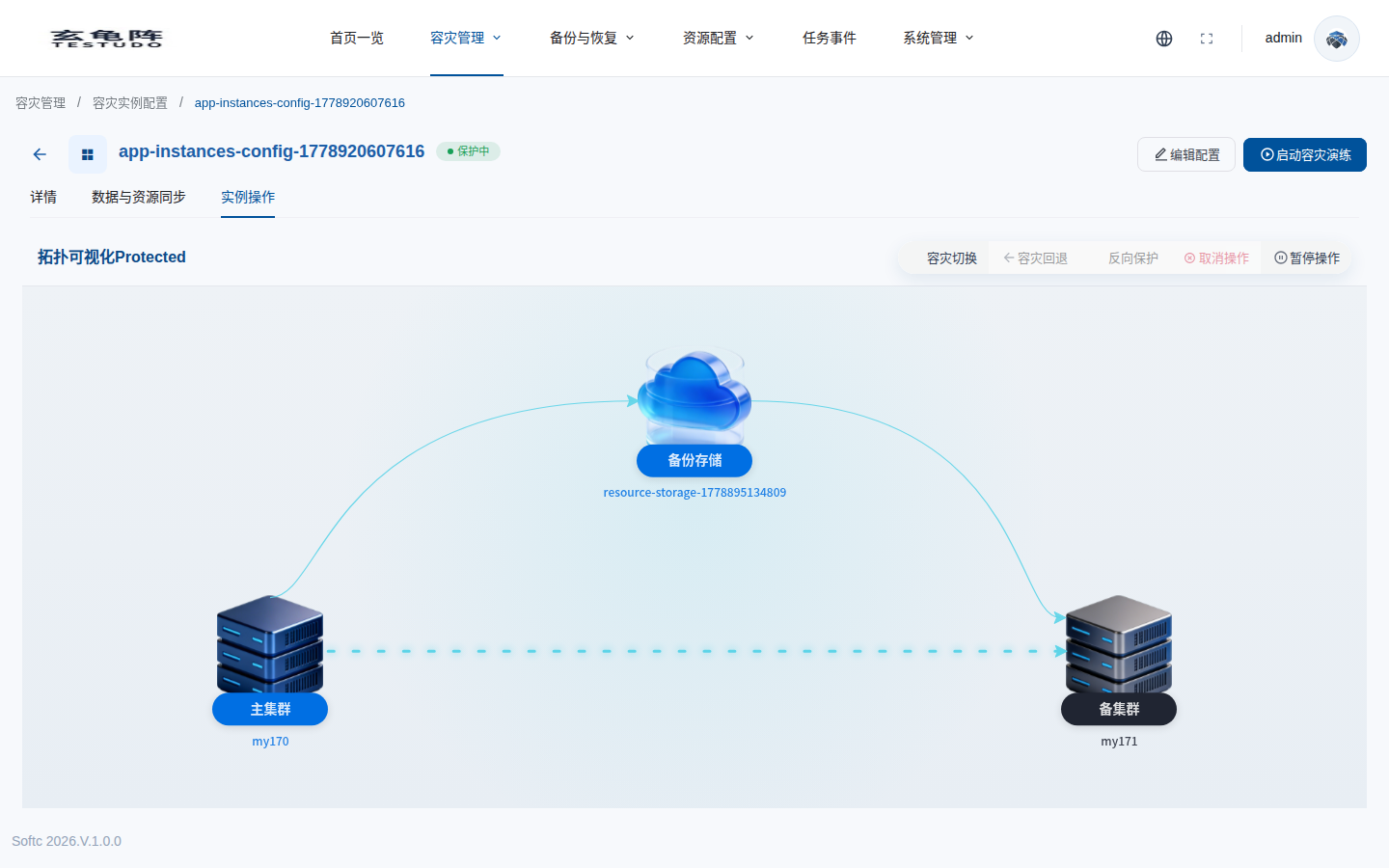
The main controls are:
- DR failover switches the protected application from the primary cluster to the standby cluster.
- Pause / Start pauses or resumes scheduled data and resource sync.
- Failback becomes available after a successful failover.
- Reverse protection becomes available after a successful failover and establishes protection in the new direction.
Submit Failover
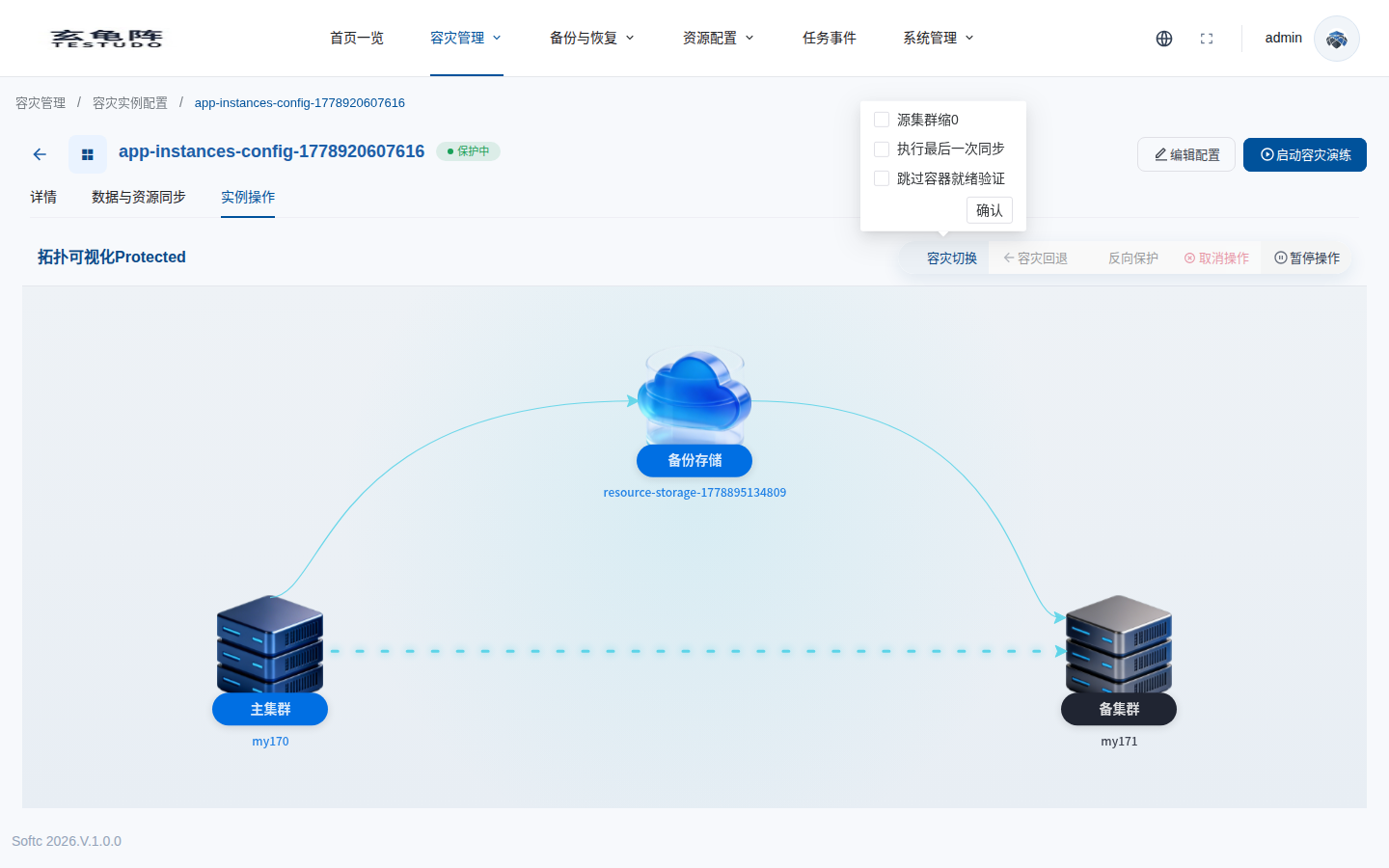
Click DR failover. The console opens a confirmation popover.
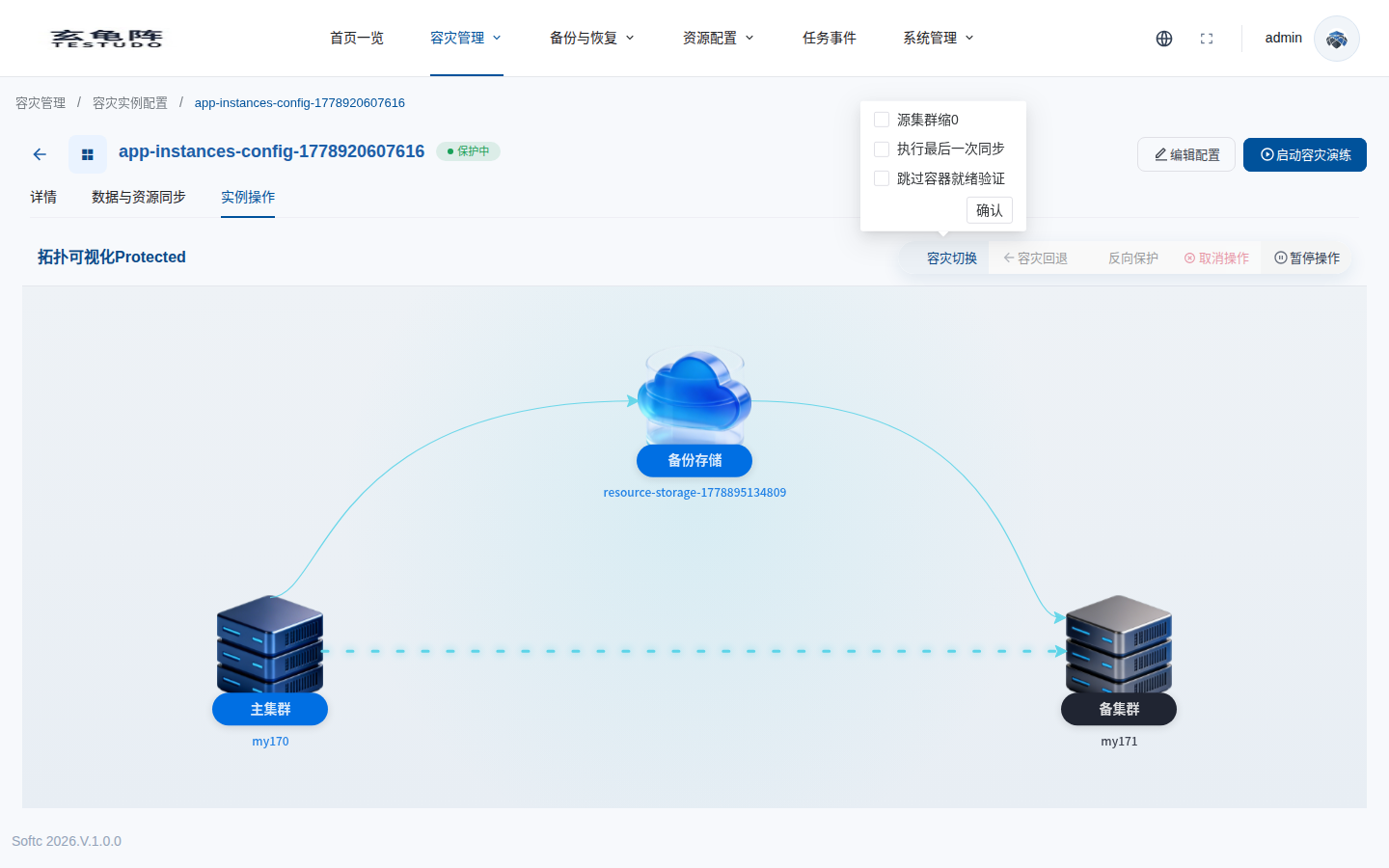
For the first drill, choose the options according to your runbook:
| Option | Recommendation |
|---|---|
| Scale down source cluster to 0 | Usually enabled for production failover to avoid both sides serving traffic at the same time. |
| Run the final sync | Usually enabled when data volume is small and the window is sufficient. For urgent failover, use the latest successful sync point if the runbook allows it. |
| Skip pod readiness validation | Useful in some drill environments. Production failover should normally keep readiness validation unless the runbook explicitly skips it. |
The example selects source scale-down and final sync:
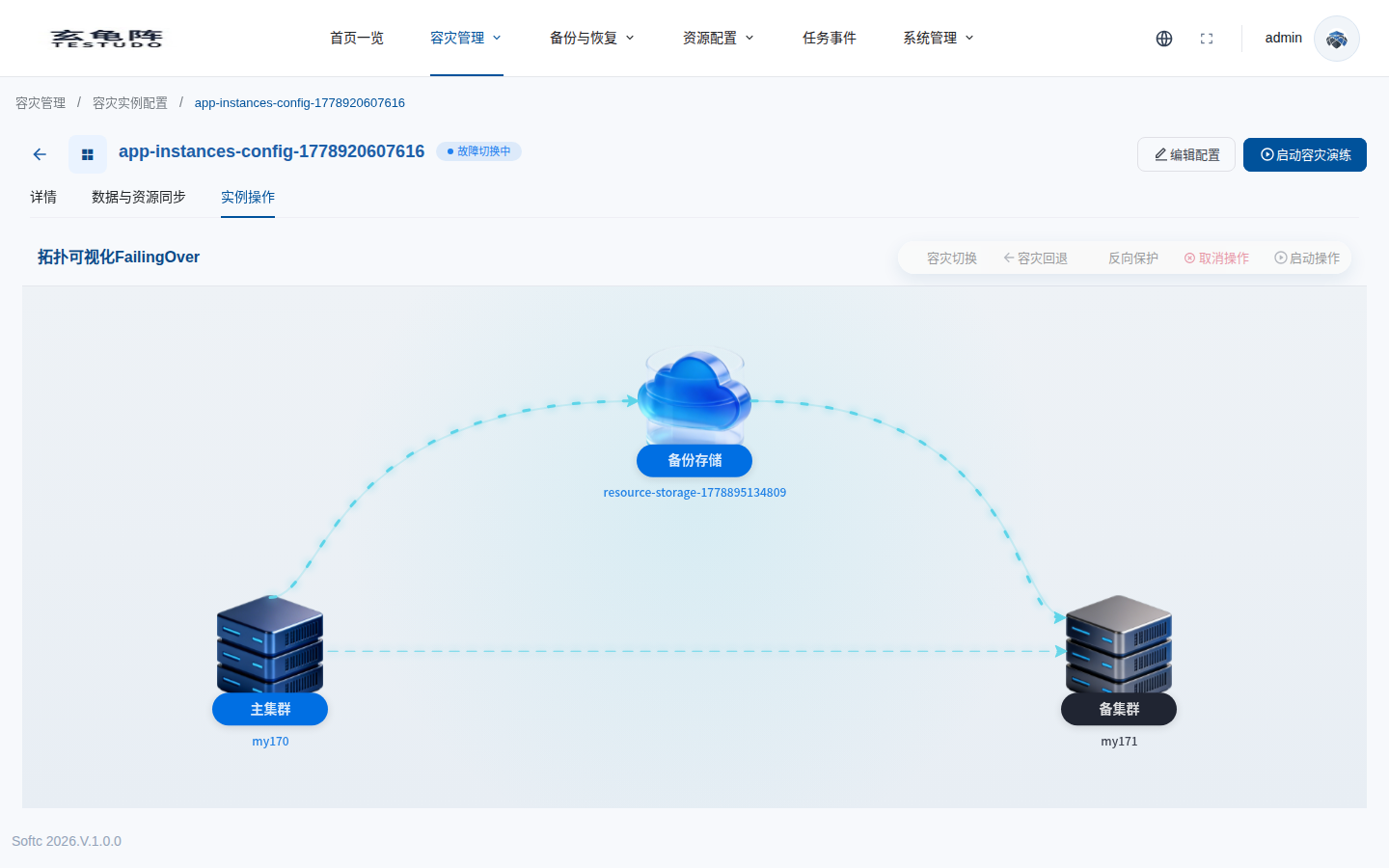
After confirmation, the instance enters failover-in-progress state and operation buttons are disabled to prevent duplicate submissions.
Observe Progress
Stay on the instance detail page and watch the state changes. The console updates instance status, topology, and available operations from the DisasterOperation execution state.
A typical failover runs these steps:
PreCheck: validate instance, clusters, repository, and sync state.PauseSchedules: pause scheduled sync.FinalSync: run the last sync.ScaleDownSource: scale down source workloads according to policy.ScaleUpTarget: restore target workload replicas.CheckReplicas: validate target workload readiness.SwitchRoles: switch primary and standby roles.
If final sync times out or a step fails, the operator records the reason in operation history and performs compensation when available. In the quickstart flow, check status, events, and history in the console first; use the full tutorial for API-level inspection and troubleshooting.
Successful Failover
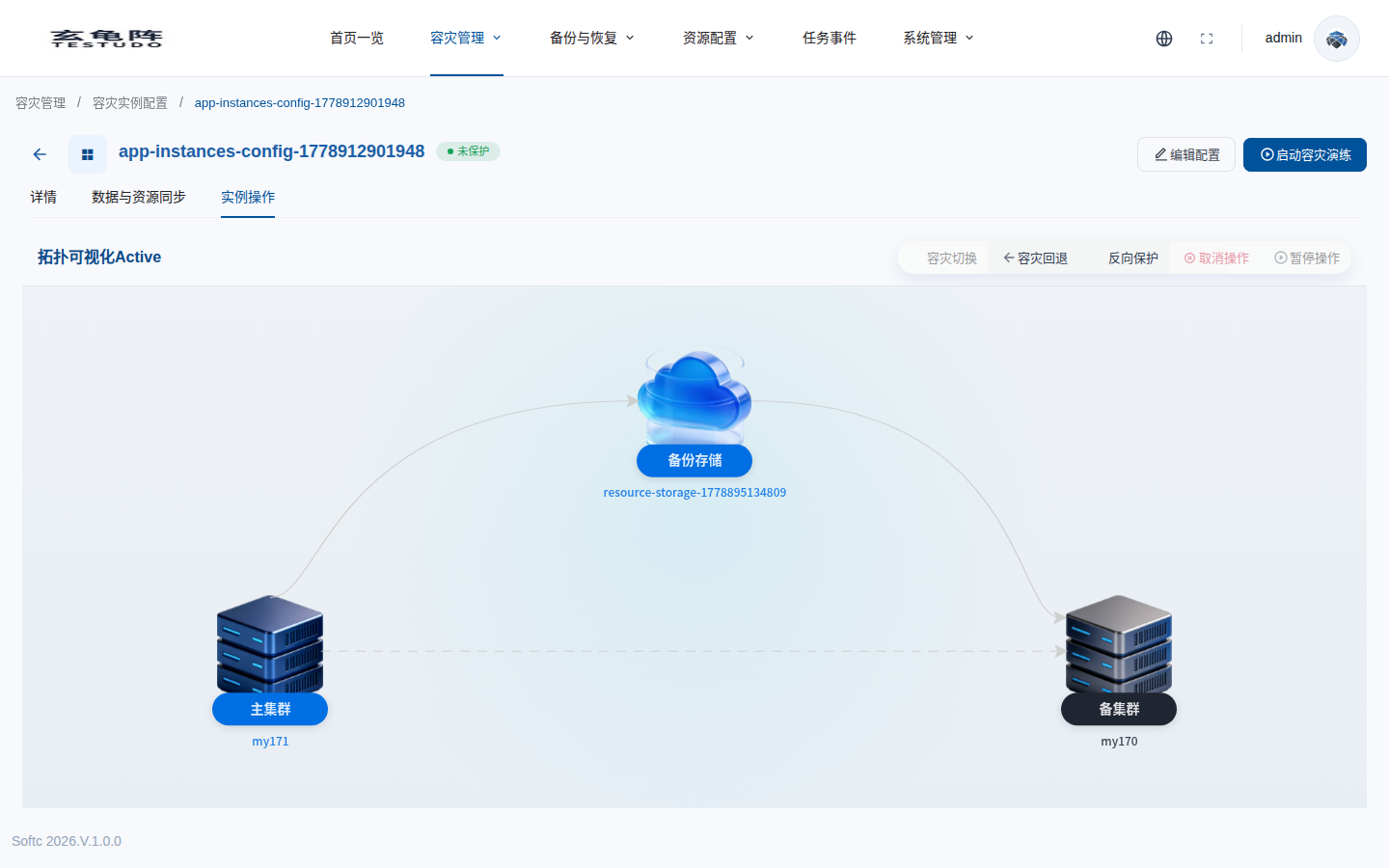
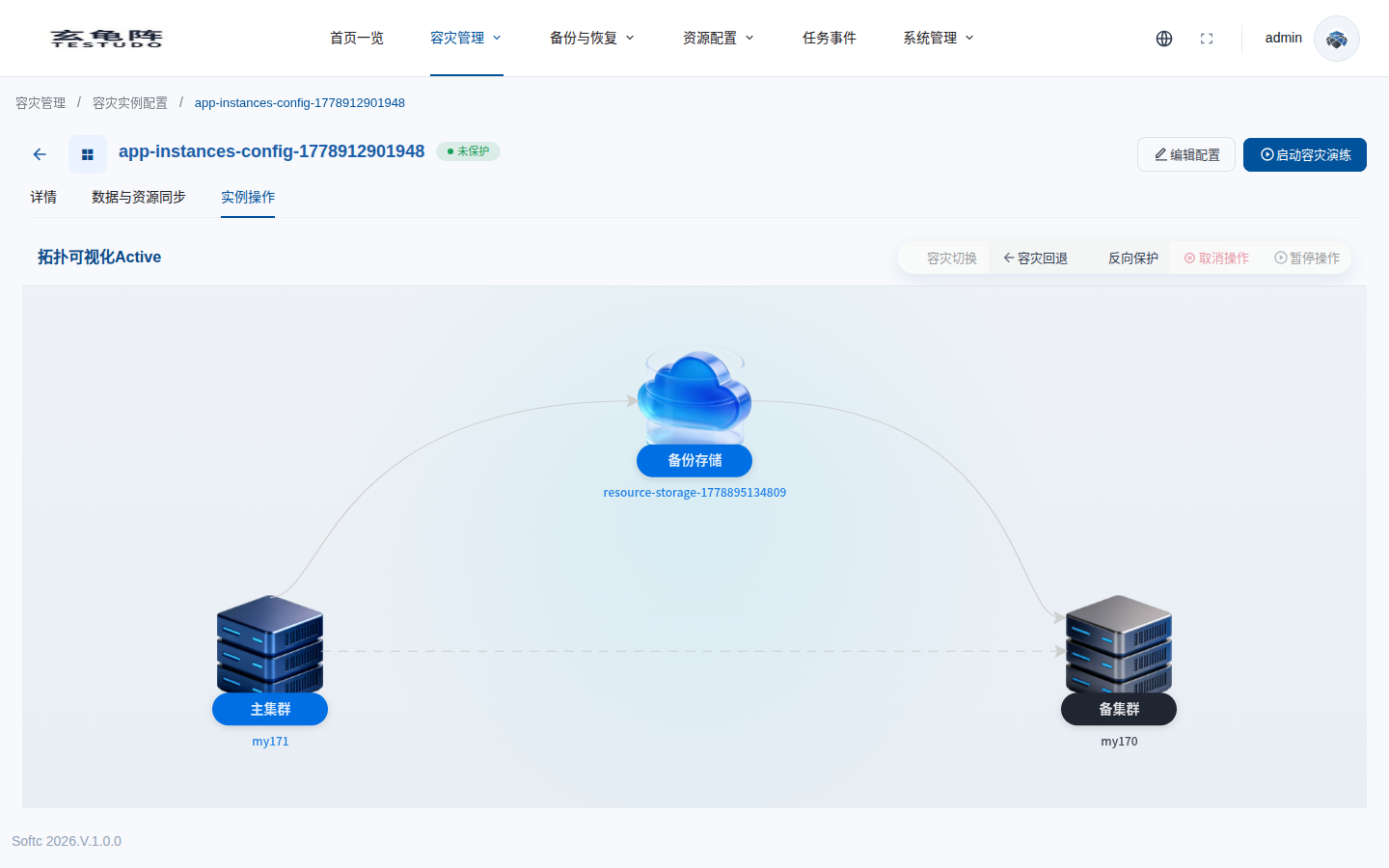
After successful failover, the instance becomes Active. In the current console this is shown as unprotected, which means the application has switched to the target cluster but reverse protection has not been established yet.
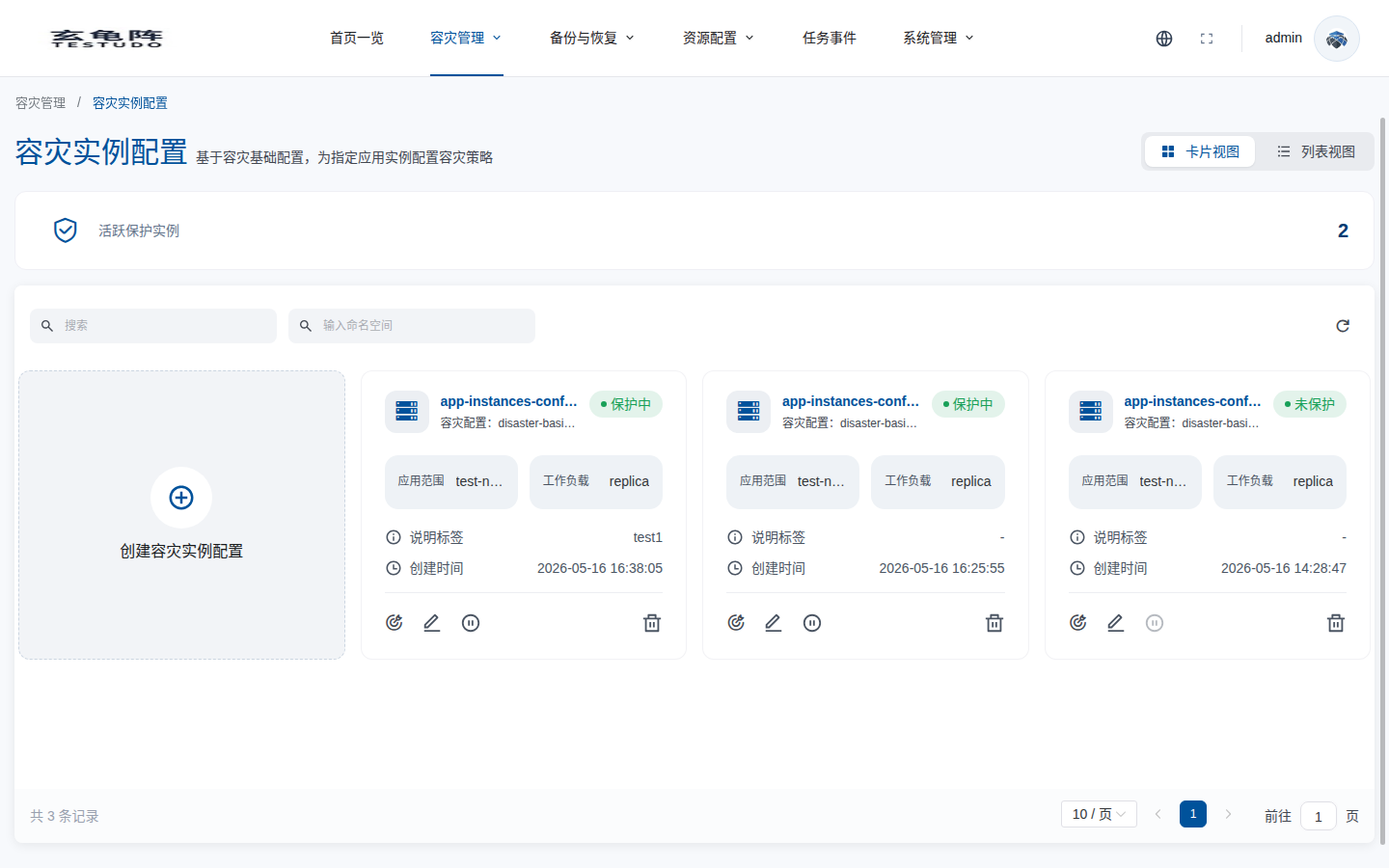
The instance list also shows the instance as unprotected.
At this point, switch external traffic according to your runbook, such as DNS, gateway, Ingress, global load balancing, or a higher-level platform router. Testudo does not replace traffic management.
Establish Reverse Protection
After the target cluster takes over the application, return to the instance detail page and click Reverse protection.
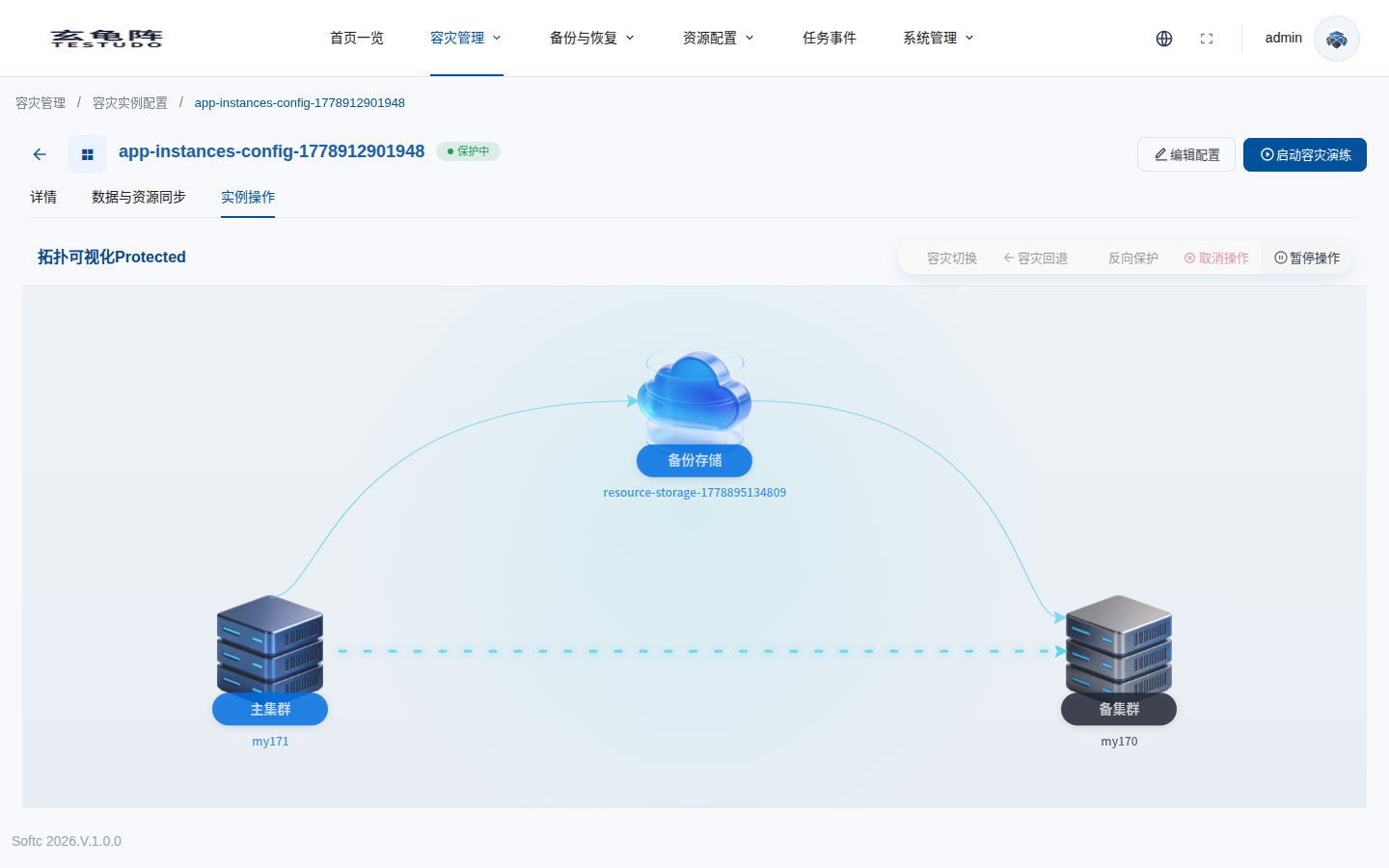
After reprotect succeeds, the instance returns to Protected. The new primary cluster is the failover target, and the new standby cluster is the original source.
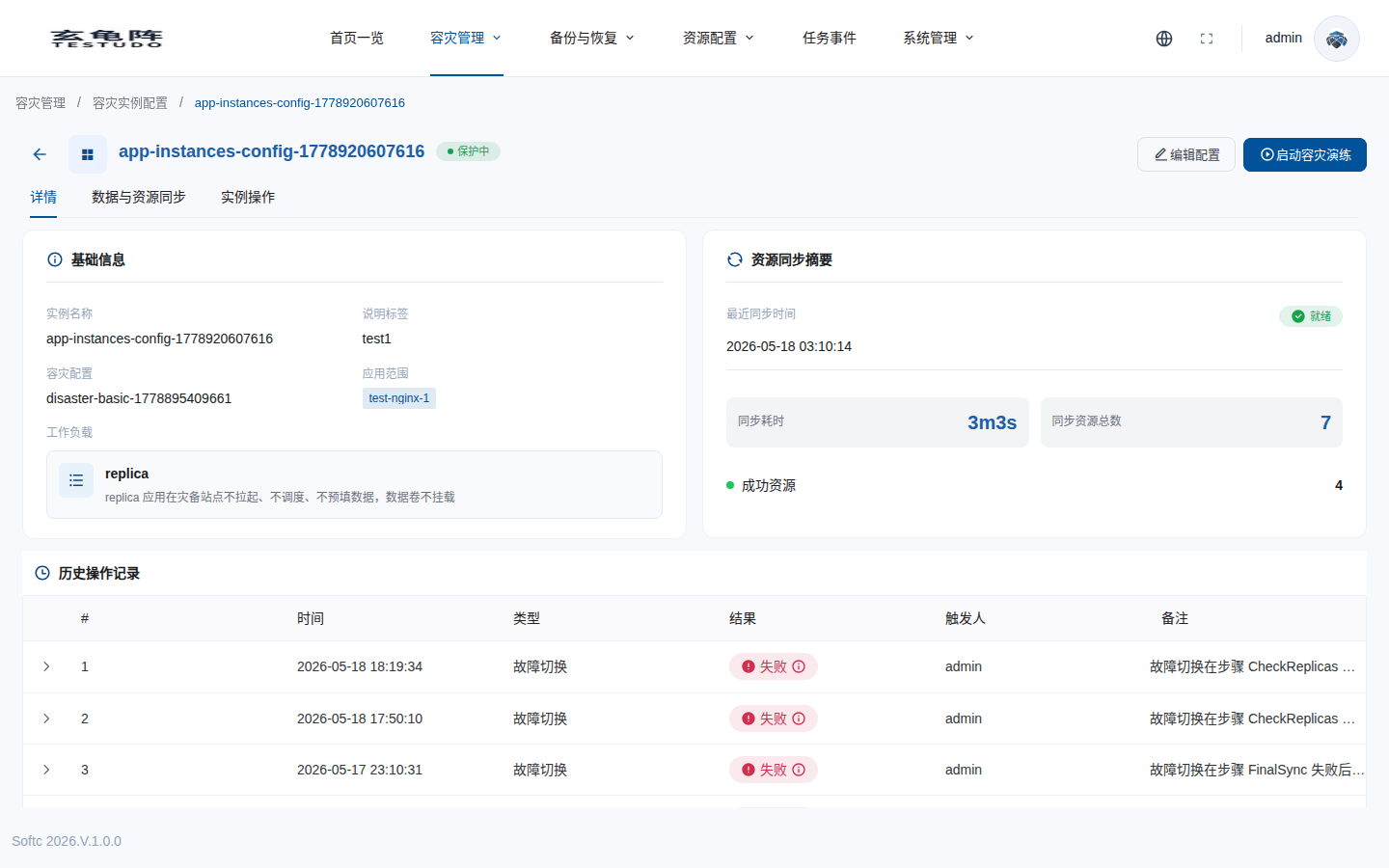
The history table keeps the failover and reprotect operations for audit and review.
Next Steps
- Continue with Run Instance Failover for parameter fields, timeout compensation, and API responses.
- Read Undo, Reprotect, And Cancel for post-failover handling.
- Read Disaster Recovery Troubleshooting to diagnose failed operations and abnormal states.